

Your desktop, every screen of it.
On one monitor or a three-screen desk, the wallpaper lands exactly where it should. The catalog, live scenes, widgets and AI Studio on your Windows desktop; what you like on your phone reaches your computer in seconds.
- Windows 10 / 11
- Multi-monitor
- Portrait screens
- Live wallpapers
- Send from your phone
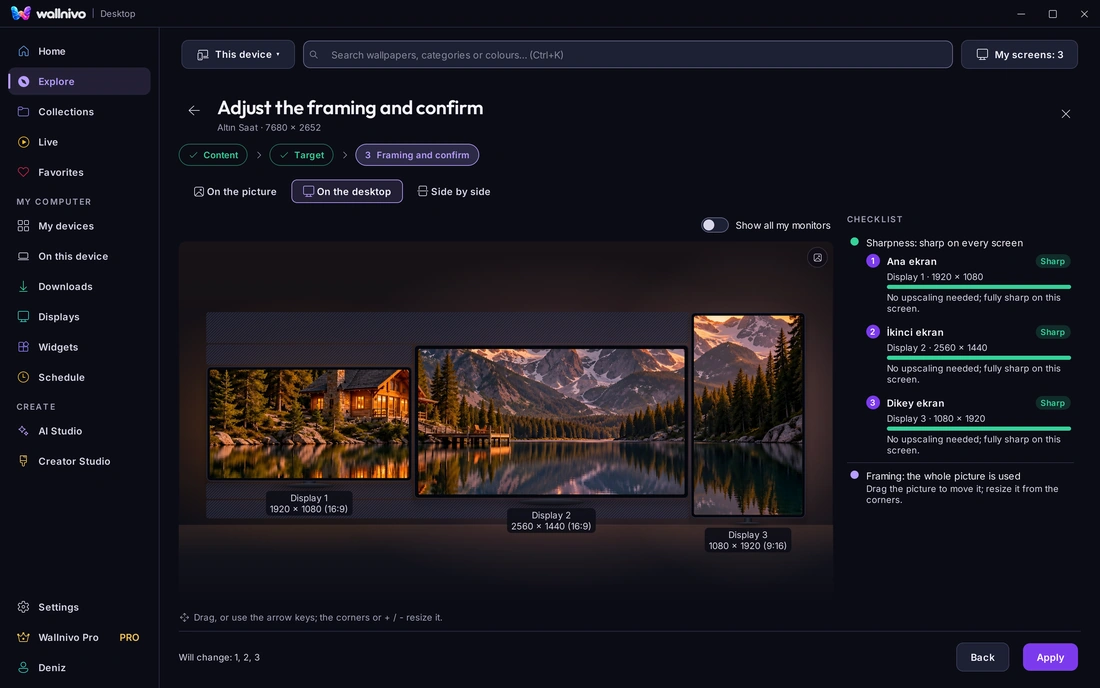
Not pick-and-set: placed.
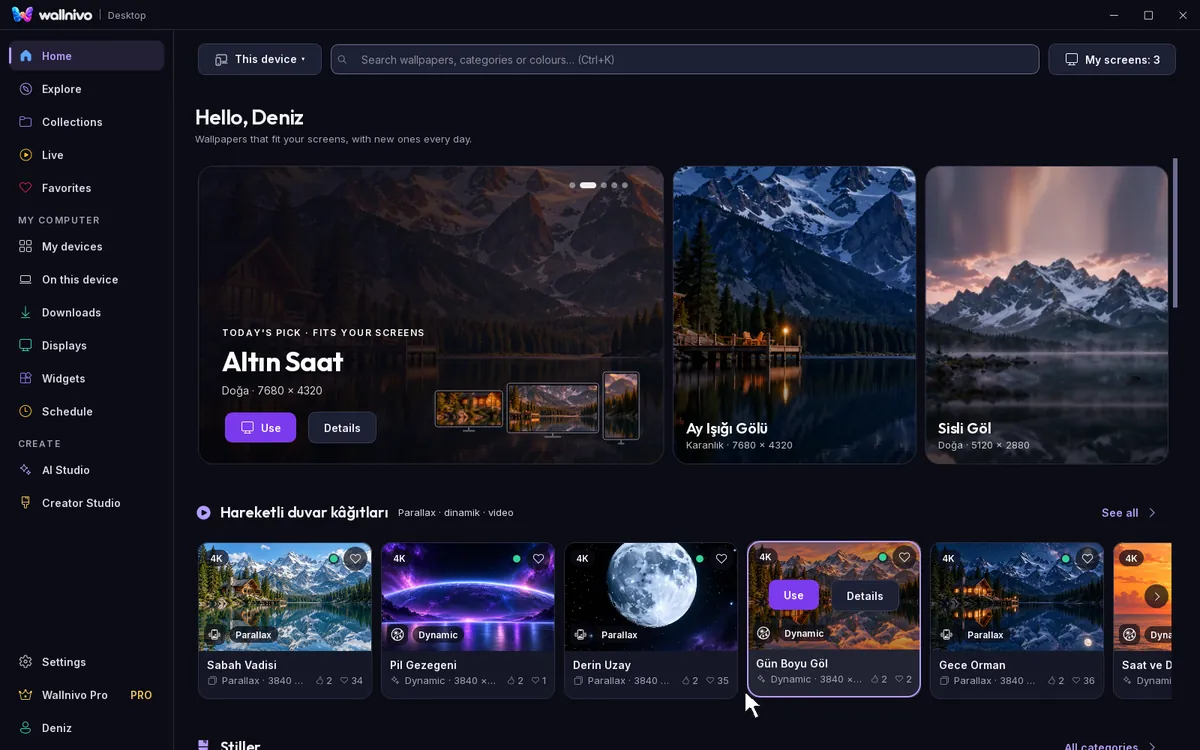
As you scroll, the app itself plays: click Use, choose the target and layout, drag and zoom the picture, see it on the desk, apply.
- 1UseOne click on the card on Home.
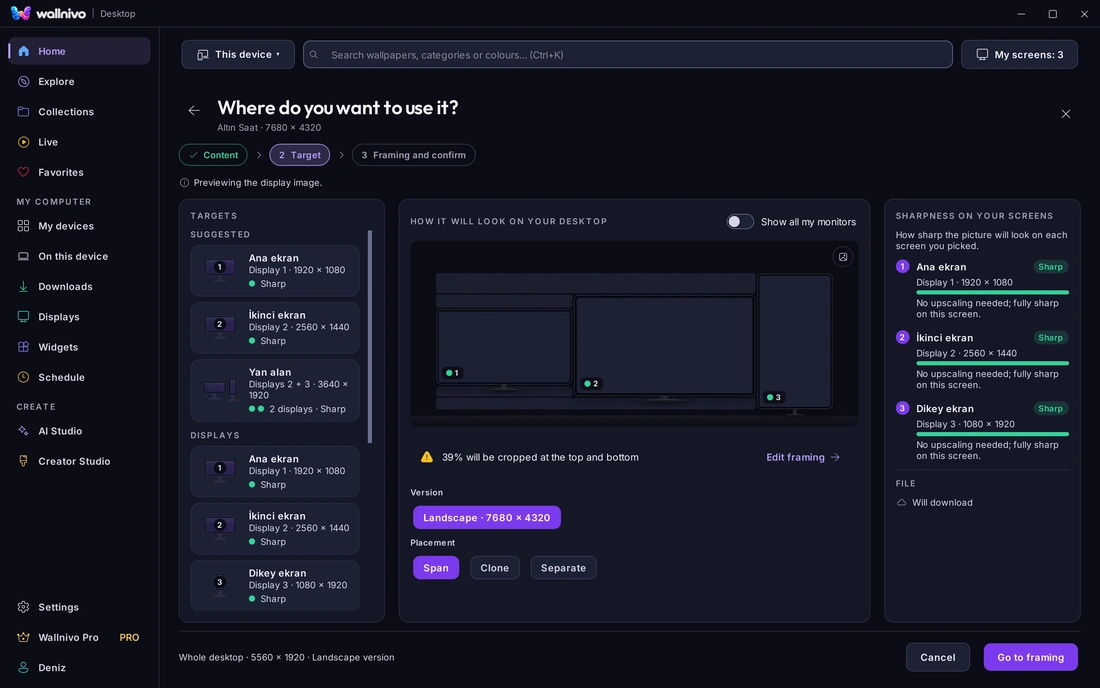
- 2Target and layoutOne screen or a saved group; Span, Clone or Separate.
- 3FramingDrag the picture, zoom with the wheel; each monitor's share sits in its frame.
- 4See it on the desk, applyThree monitors as they stand on the desk; the sharpness check goes green, Apply puts it on screen.
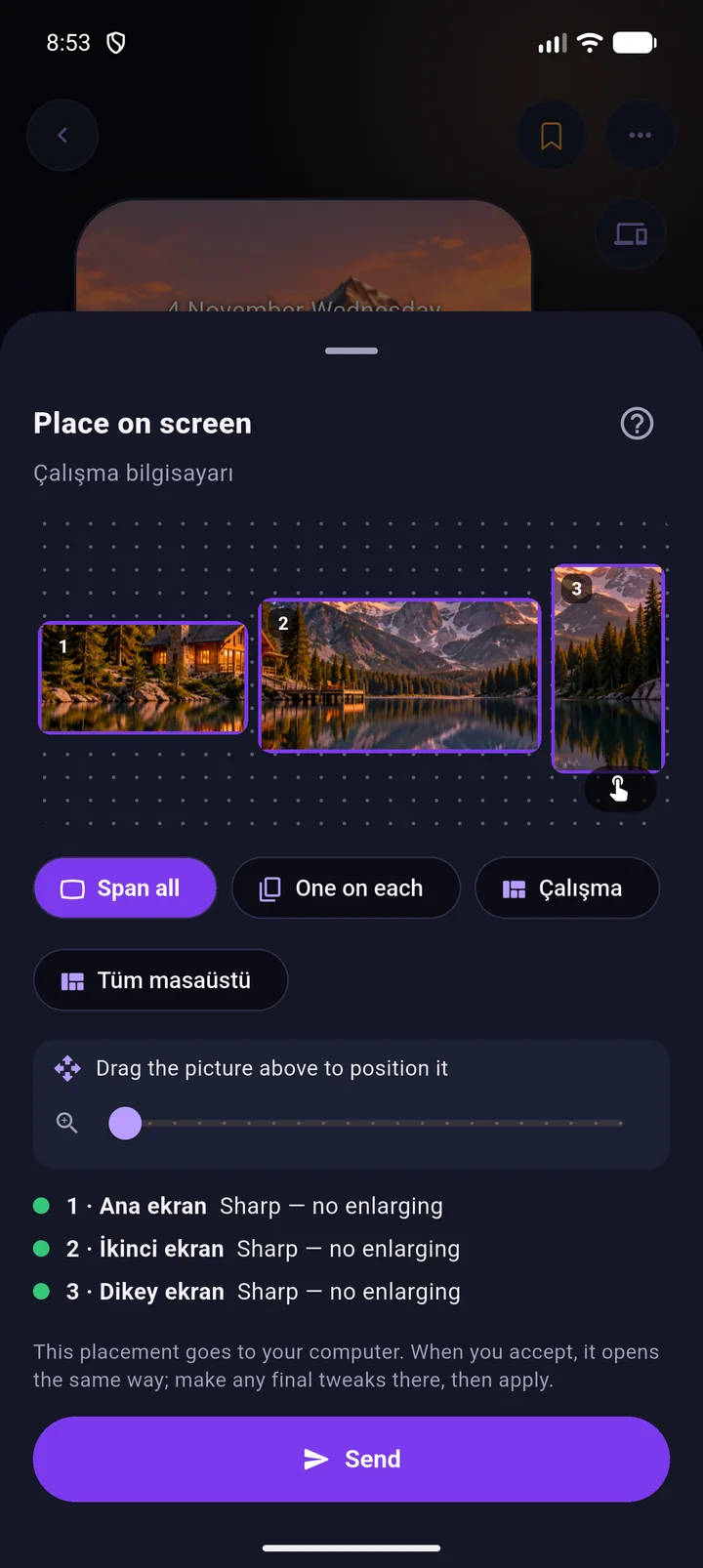
Pick it on your phone, see it on your desk.
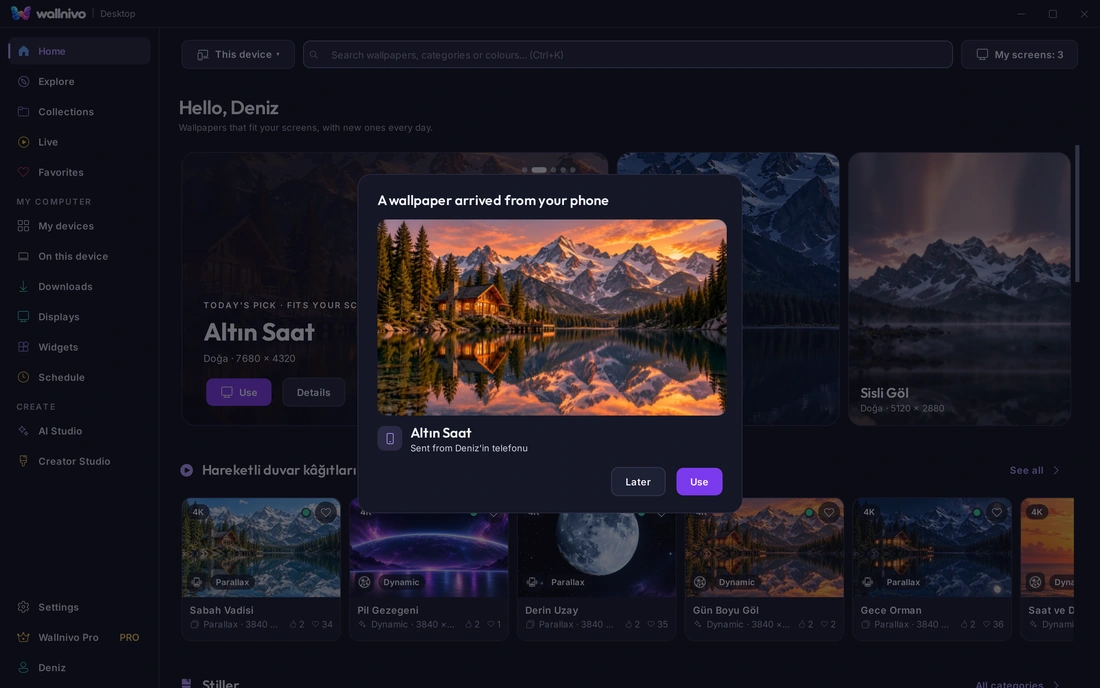
Send a wallpaper you like on your phone to your computer. You choose the monitor or group on the phone; the computer asks first, you say Use, and the placement screen opens with that choice.
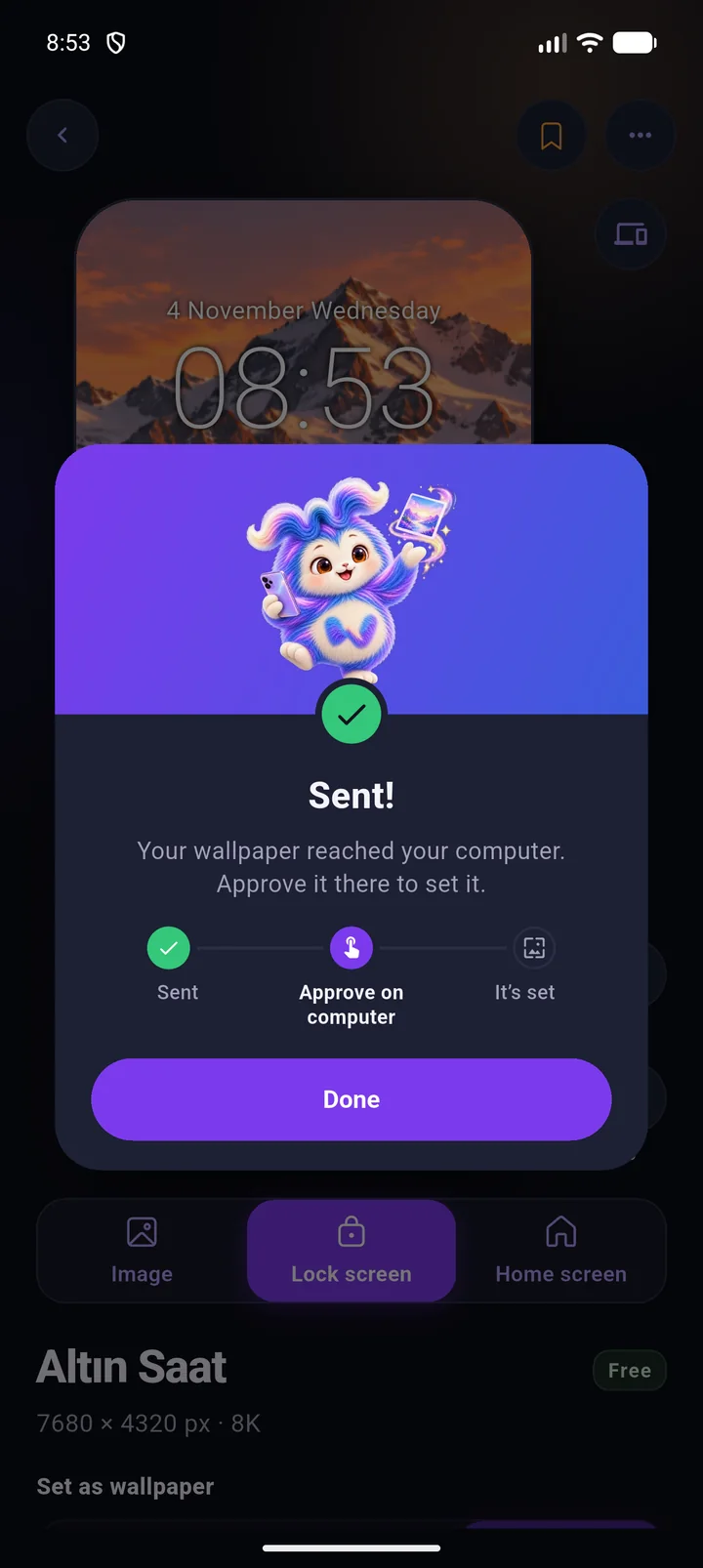
 Sent
- 1Pick on the phoneFrom the wallpaper's menu: Send to another device › Computer. Your monitors are drawn as they stand on the desk; pick one, a saved group, or all of them.
- 2Approve on the computerIn front or in the tray, the send arrives within seconds. You see who sent it and the versions; Later keeps it in a list.
- 3On screenUse opens the placement screen with the phone's choice. Adjust the framing, Apply; the wallpaper is on screen that moment.
Both need to be signed in to the same account. Saved sends wait under Settings › Account and devices.
See the app in nine seconds
Home, placement, screens, AI Studio and the library.
One picture, all your screens
It knows the size and layout of your monitors. Span one picture across all of them, clone it, or give each screen its own. A monitor standing on its side counts too.
- You frame it
- Drag the picture to move it, resize from the corners; you see what each monitor gets before applying.
- Saved groups
- Save the screen groups you use most and switch with one pick. The same groups show up when you send from the phone.
- Sharpness check
- How sharp the picture will be on each screen is written while you choose; it says when upscaling is needed.
Define your screens once, then use them with one pick
The Displays page shows your monitors in the layout and numbering Windows uses. Gather the screens you use together into a group; the placement screen and sends from the phone then offer that group as a single choice.
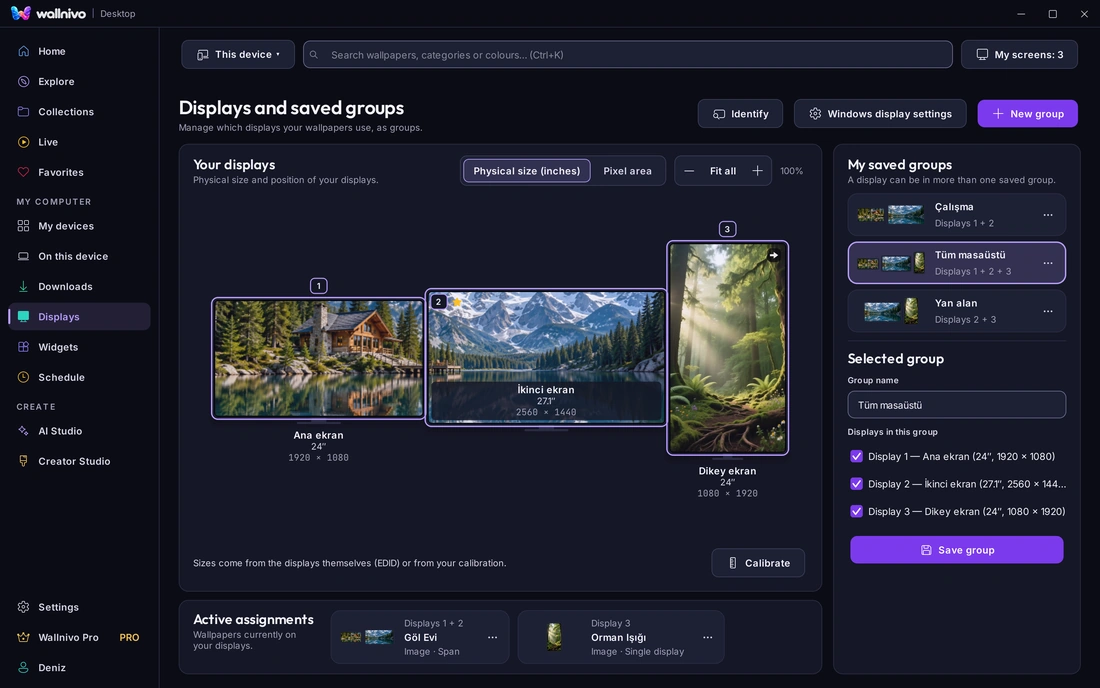
- 1Know your screensSizes come from the monitors themselves; view them in inches or pixels and correct them with Calibrate if needed. Active assignments show at the bottom of the page.
- 2Create a groupPress Create group, tick the screens that belong, give it a name: Work, Whole desk, Side area. One screen can be in several groups.
- 3Use it with one pickIn Use › Target the groups lead the suggestions; sending from the phone lists them under the same names. Pick the group, confirm the framing.
Wallpapers that fit your screens
Home suggests by your monitors' resolution; Explore, collections, favorites and search share the account with your phone.
- Versions on every card
- Portrait, landscape and square versions, the 4K and 5K badge, and how sharp it will be on your screen, right on the card.
- Favorites on every device
- What you like on the computer is in your favorites on the phone too.
- Offline
- Your downloads stay on this computer and apply without a connection.
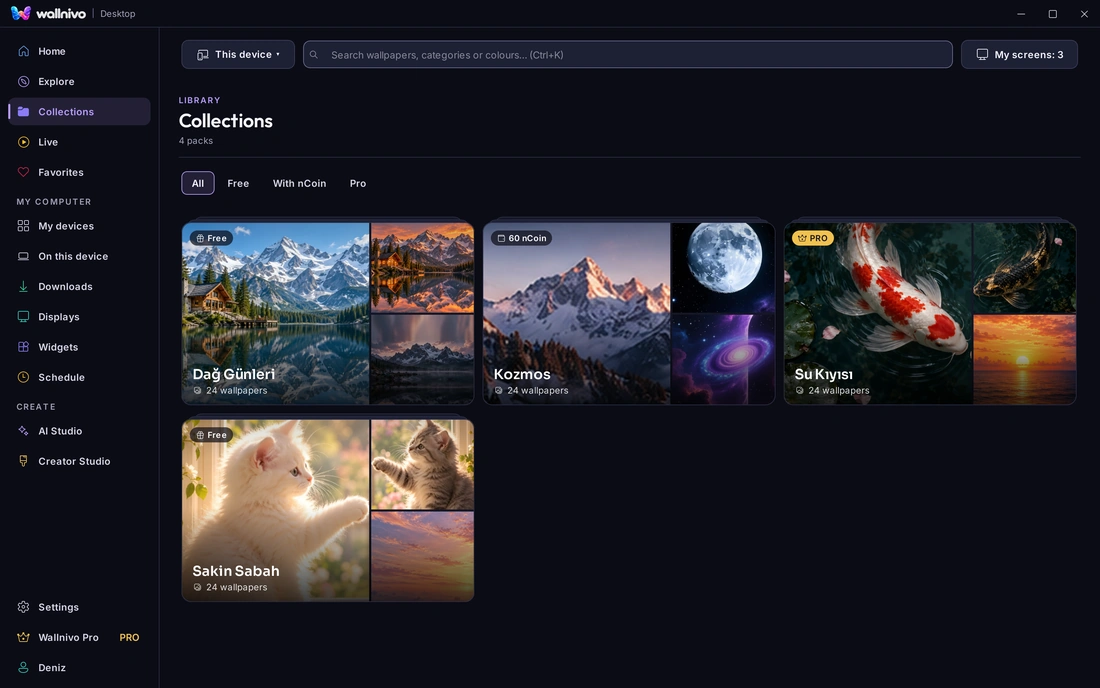
Your desktop does not have to stand still
Parallax scenes, video wallpapers and dynamic pictures that change with the time of day or the battery level.
- Pauses on battery and in games
- When a laptop goes on battery or a full-screen app opens on a screen, motion pauses there and resumes where it left off.
- Dynamic pictures
- Morning, evening and night frames follow the clock; on a computer with a battery, the battery level.
- Tells you its limit
- On some computers a live wallpaper may stay on a still frame; the app says so while you choose.
Clock, date and weather over the wallpaper
Widgets sit over the wallpaper and under your desktop icons. They anchor to each screen's own corners and leave with the wallpaper they belong to.
- Nine positions
- From top left to bottom center, per screen.
- You pick the city
- Weather never reads your location; only the city you choose is sent to Wallnivo.
- Clock format
- 24-hour and seconds are settings; seconds stop when reduced motion is on.

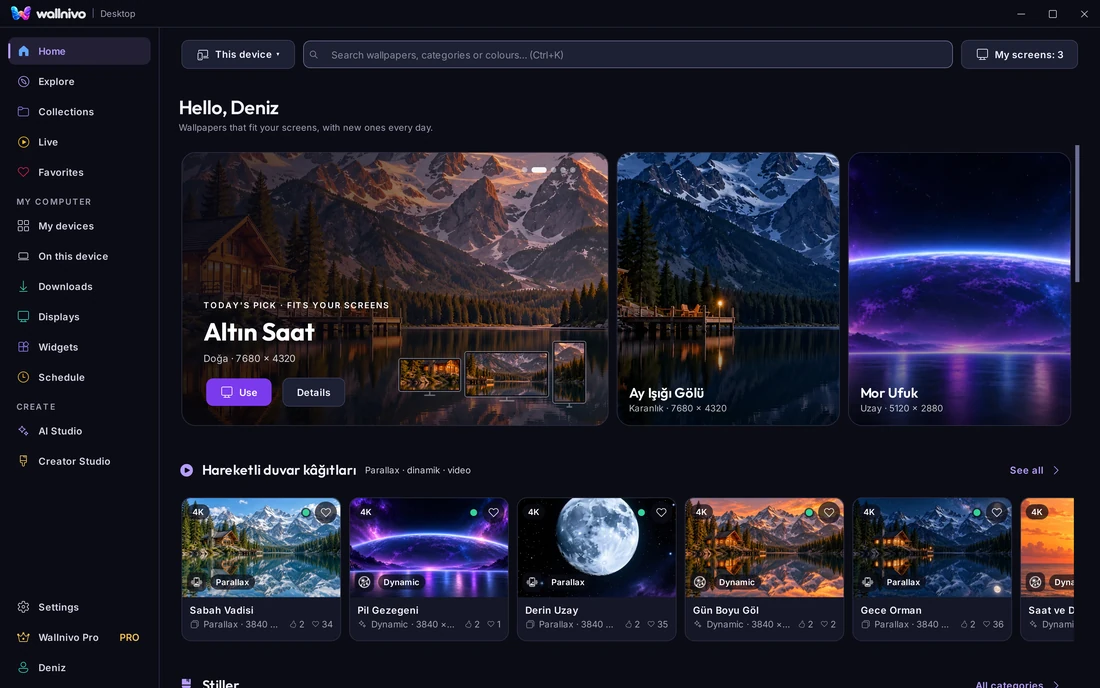
Let it refresh itself
Pick a list, a pack or Favorites; the wallpaper changes at the interval you set. Your desktop stays fresh while you work on something else.
- A rule per screen
- Mountains on the work group every hour, portraits on the vertical screen once a day.
- Shuffled or in order
- Each rule runs at its own interval, shuffled or in list order.
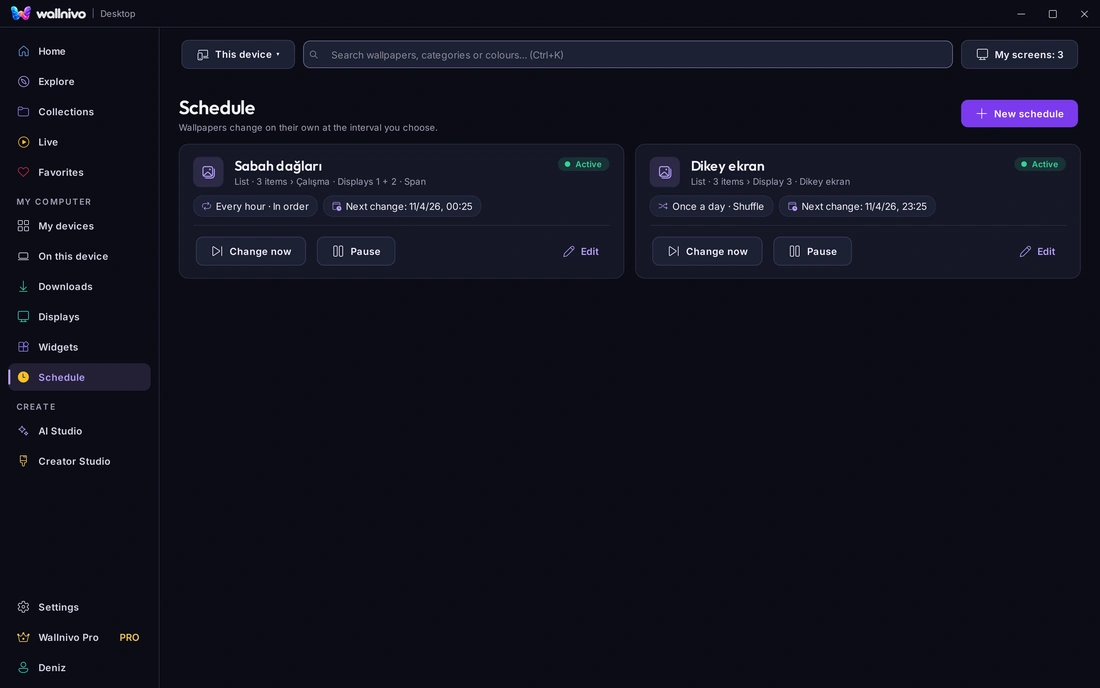
On this device
Add your own photos and pictures from disk to the library and place them with the same flow. Local content stays on this computer only; nothing goes to the server.
- Link or copy
- Leave the file where it is or copy it into the library; your choice.
- The library is your folder
- Change its location from Settings; the app moves it and verifies the copy.
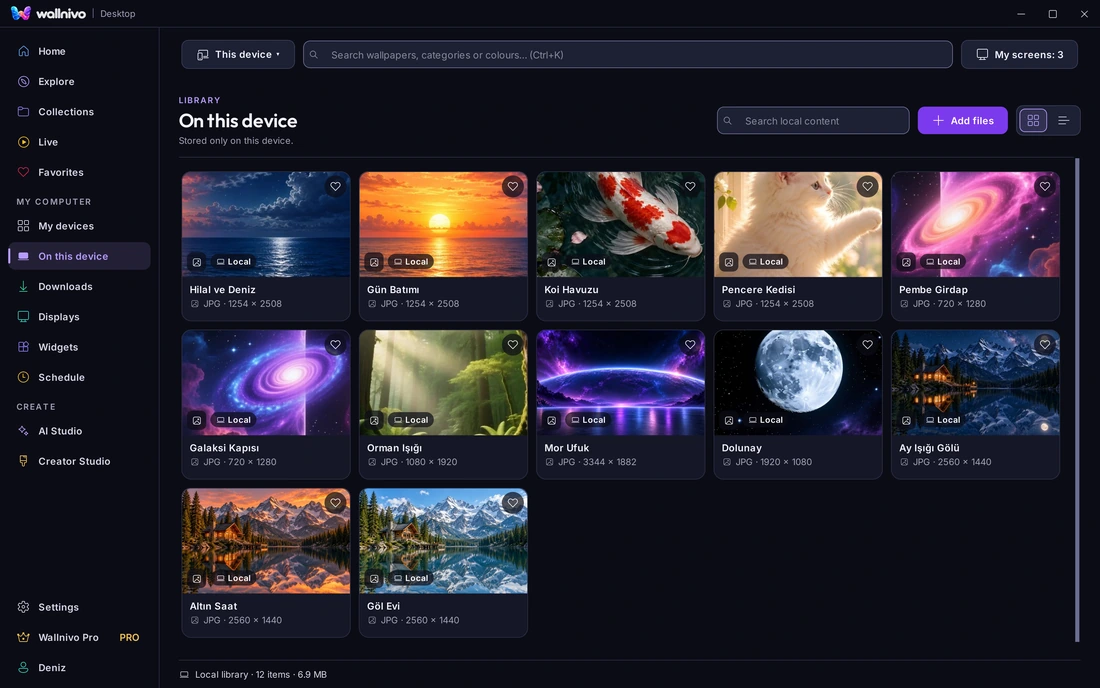
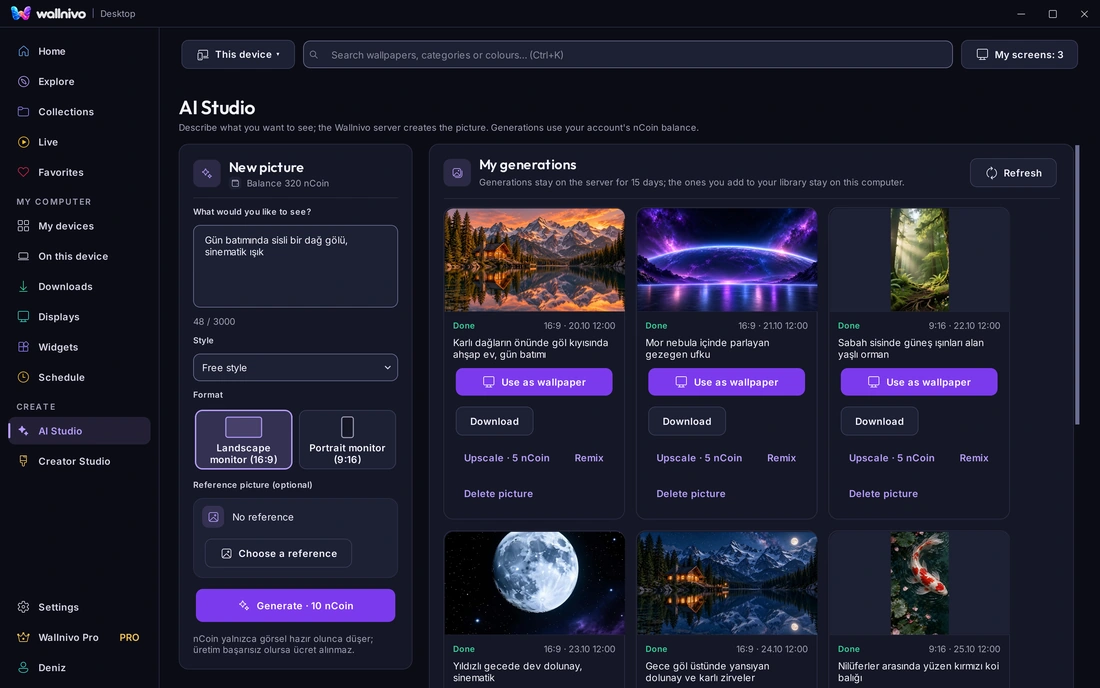
Draw what you have in mind onto your screen
Describe it, generate it, place it on your monitors. What you made on the phone is here too, with your account.
- Shared with the phone
- Made on the computer, it is on the phone; made on the phone, it is on the computer.
- nCoin
- Generating costs nCoin; if the picture is not delivered, nothing is charged.
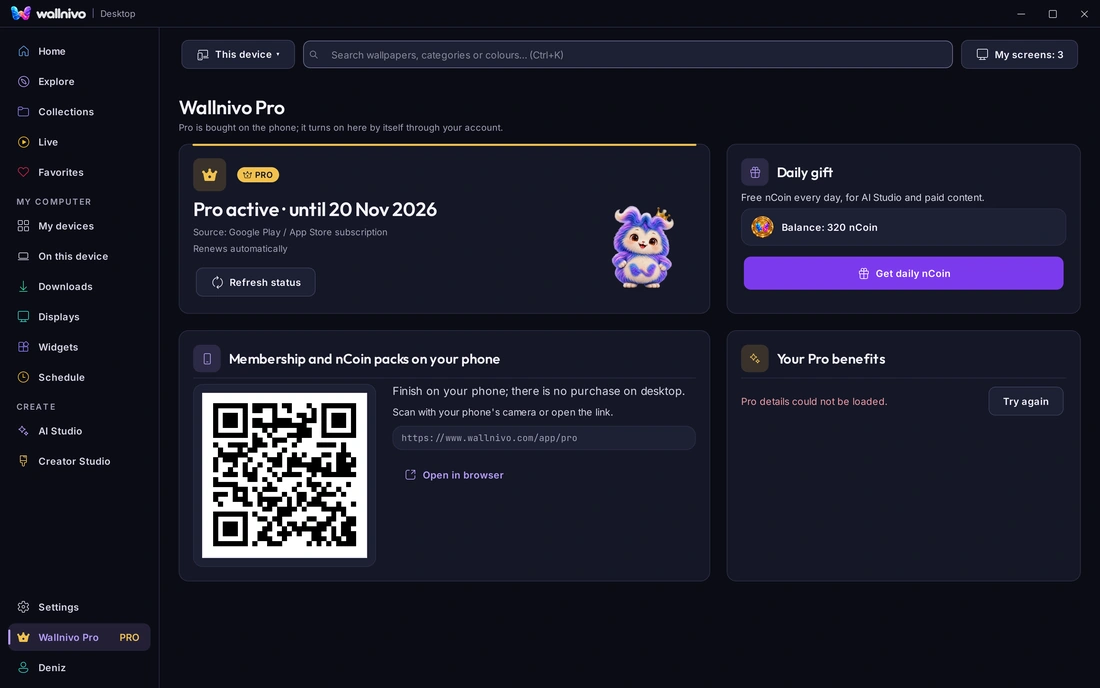
One account, all your devices
Phone, Google TV and computer share one account. Pro is bought on the phone and unlocks on the computer by itself; the daily nCoin gift is here too.
- Sign in with the phone
- By e-mail, or scan a QR code with the phone app; the computer connects in seconds.
- Browse without signing in
- No account needed to look through the catalog; sign in to use, favorite, schedule and receive sends from the phone.
On your desktop in four steps
Download and install
Windows 10 or 11, 64-bit. Setup takes a few minutes.
Sign in
With the account from your phone; your favorites, creations and Pro come along.
Pick and Use
Choose the picture, the screen or group, confirm the framing.
The rest runs by itself
Schedules, widgets and sends from the phone work while the app sits in the tray.
Respectful of your computer
Applied pictures in a private vault
Pictures fetched with Use are kept in a private vault and do not count as downloads. Only what you Download goes to your folder.
No fights with other apps
With Wallpaper Engine or Lively open, Wallnivo never takes over a screen without asking; cancel and nothing changes.
Battery and game aware
Live wallpapers pause on battery and while a full-screen app is open.
Frequently asked
Which operating systems?
Windows 10 and 11 (64-bit) for now. A Linux version is in the works, macOS later.
Does it cost anything?
The app is free. Pro and nCoin are bought on the phone and unlock on the computer with the same account.
Do I need an account?
Not to browse. To use, favorite, schedule and receive sends from the phone, sign in with the account from your phone.
Can I send from the computer to the phone?
For now the direction is phone to computer. A picture you favorite on the computer is in your favorites on the phone too.
Will a live wallpaper slow my computer?
It pauses on battery and while a full-screen app is open on that screen; it resumes on power or when the app closes.
Does it work alongside Wallpaper Engine?
Not both on the same screen. Wallnivo asks before taking a screen over; cancel and nothing changes.
Pictures are from the real app with an example account and an example screen layout.